

A lot of Facebook ads reports get opened, scrolled and closed. They show 40 columns of numbers and never say what happened or what to do next. A good report does the opposite. It fits on one screen, explains the week in plain words, and ends with a short list of actions.
Below is the Facebook ads report template we'd use ourselves. You get every section written out, what each metric means, a filled example with made-up numbers, and how to build it in Ads Manager, Google Sheets or Excel. At the end, we show how to get the same report built from your live Meta data without the copy and paste.
What a Facebook ads report should do
A Facebook ads report has one job. It tells the reader if the ads worked, why, and what changes next. Everything in the report should serve one of those three questions.
So you write the report for a person to read. Your boss or client wants the answer first and the detail second. The person running the account wants to spot problems early. One report can serve both if you put the summary at the top and the tables underneath.
Keep the format the same every week or month. When the layout never changes, people learn where to look, and changes in the numbers jump out. A report that moves things around each time makes the reader work too hard.
The Facebook ads report template
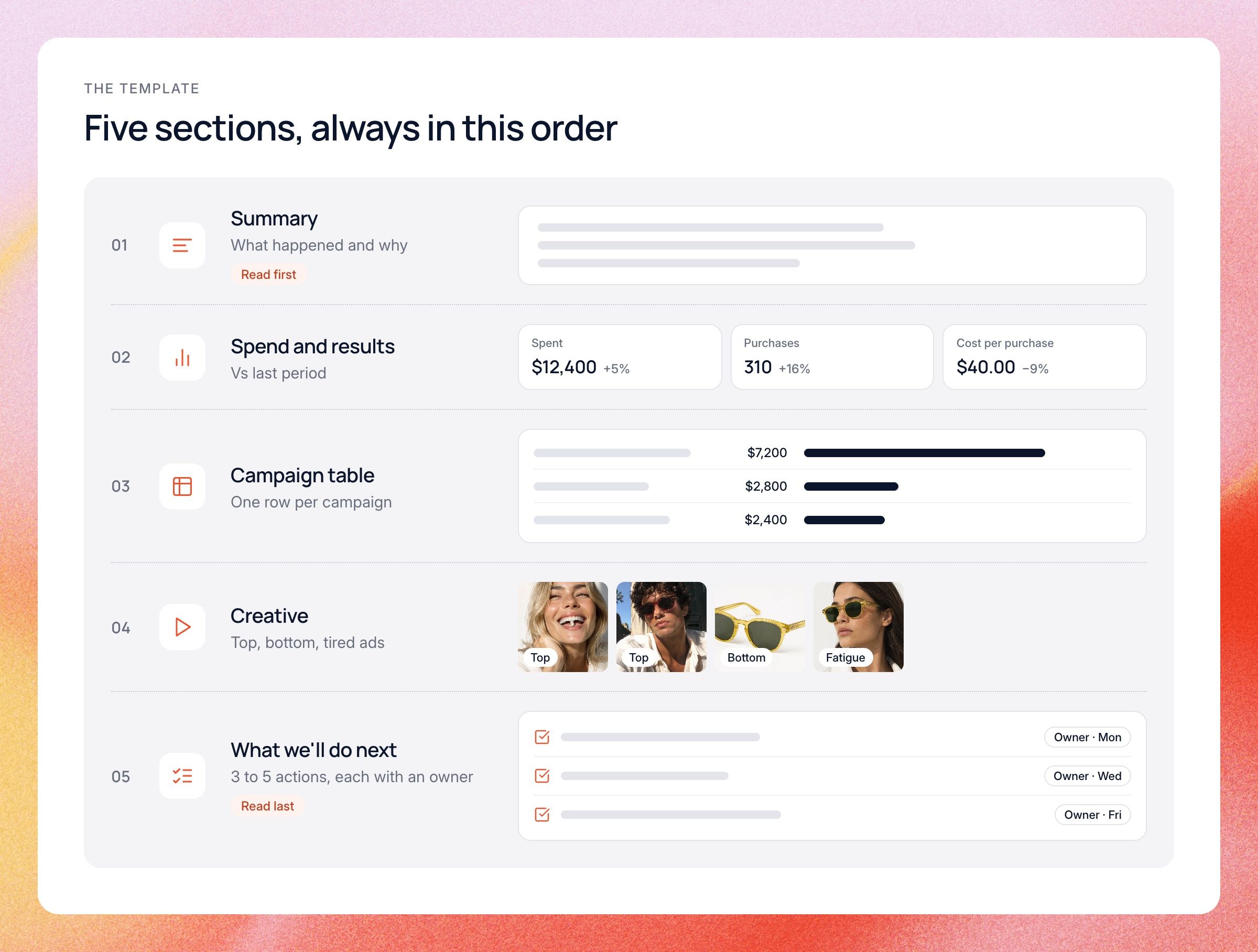
Here is the full template. It has five sections, in this order:
- Summary. Three to five sentences on what happened and why.
- Spend and results vs last period. The headline numbers, with the change.
- Campaign table. How each campaign did, side by side.
- Creative section. Hook rate, top ads, bottom ads and any tired ads.
- What we'll do next. Three to five actions, each with an owner.
The order matters. The summary and the next steps are what most people read, so they sit at the top and the bottom. The middle sections are the proof. Copy the blank version below into a doc, a sheet or a Slack post and fill it in each week.
FACEBOOK ADS REPORT Account: [name] Period: [dates] Compared to: [previous period dates] 1. SUMMARY - What happened: [one sentence on the main result] - Why: [one or two sentences on what drove it] - What's next: [one sentence on the main change you'll make] 2. SPEND AND RESULTS VS LAST PERIOD Metric | This period | Last period | Change Amount spent | | | Results (purchases, leads or sign-ups) | | | Cost per result | | | Revenue (purchase value) | | | ROAS | | | CTR (link) | | | CPM | | | Frequency | | | 3. CAMPAIGN TABLE Campaign | Spend | Results | Cost per result | ROAS | CTR | Change in cost per result [campaign 1] | | | | | | [campaign 2] | | | | | | [campaign 3] | | | | | | 4. CREATIVE Top 3 ads (by results, with hook rate, hold rate, CTR, cost per result): - [ad name]: [numbers] [one line on why it works] Bottom 3 ads (with meaningful spend): - [ad name]: [numbers] [one line on why it's weak] Fatigue watch (frequency up, CTR down): - [ad name]: [numbers] 5. WHAT WE'LL DO NEXT - [action] | Owner: [name] | By: [date] - [action] | Owner: [name] | By: [date] - [action] | Owner: [name] | By: [date]
What goes in each section
If a number doesn't help the reader answer "did it work, why, and what's next", leave it out. Below is what to put in each part and why. The summary comes first in the report, even though you write it last.
Summary
The summary is the most important part of the report. Write it last, after you've looked at everything else. Keep it to three to five sentences: the main result, the reason behind it, and the change you plan to make.
Good summaries use numbers and causes. "Purchases rose 16% while spend rose 5%, mostly because the new founder video cut cost per purchase in prospecting" tells the reader something. "Performance was strong this week" tells them nothing.
Spend and results vs last period
This is the scoreboard. Show each headline metric for this period, the last period, and the change as a percent. Always compare like with like, such as this week vs last week, or this month vs last month.
Pick one main result and stick to it. For an online store, that's purchases and revenue. For a B2B company, it's usually leads or demo bookings. Mixing several results in one row makes cost per result meaningless.
Campaign table
The campaign table shows where the money went and what each part of the account returned. Keep it to one row per campaign, sorted by spend. Small test campaigns can be grouped into one "Other" row so the table stays readable.
Add a column for the change in cost per result. That column is where problems show up first. A campaign that got 30% more expensive week over week deserves a line in the summary, even if the account total looks fine.
Creative section
With broad targeting, Meta leans on your ads to find the right people, so creative belongs in every report. List your top three and bottom three ads by results, and only include ads with enough spend to judge. Add one line on why each top ad works, like the hook, the person on camera, or the offer.
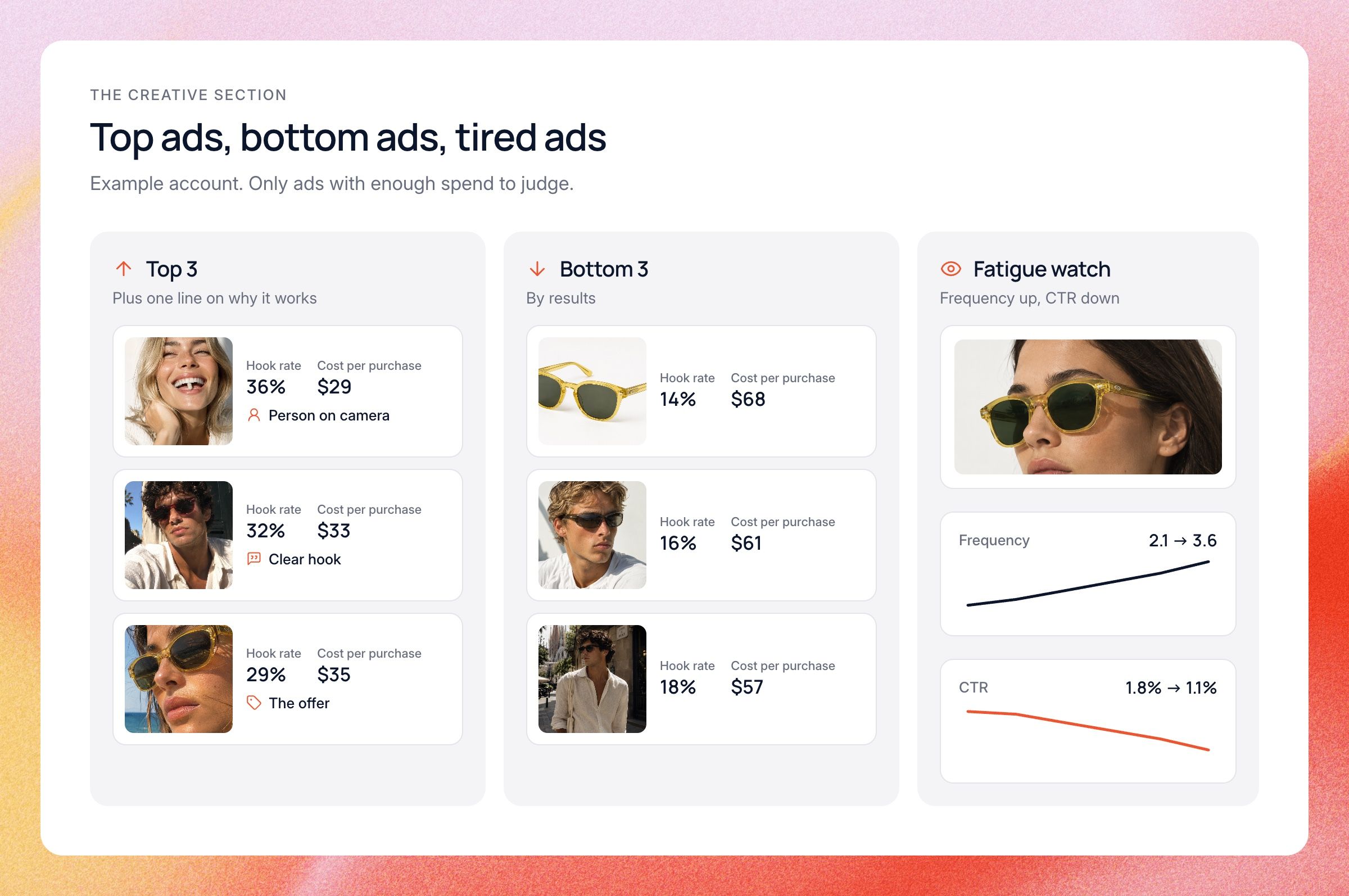
Add a short "fatigue watch" list too. These are ads where frequency is climbing and CTR is dropping. Catching creative fatigue a week early saves real money, and we cover the signs in our guide to ad fatigue.
What we'll do next
This is the section that makes the report worth reading. List three to five actions, each with an owner and a date. Tie each action to something in the report above it.
Good actions are specific. "Move $1,000 a week from the polished brand video to the founder video" is an action. "Keep testing creative" is not. Next period, start by checking what happened with each of these actions.
The metrics, explained in plain words
You don't need every column Meta offers. These are the ones that matter in most reports, and what they mean.
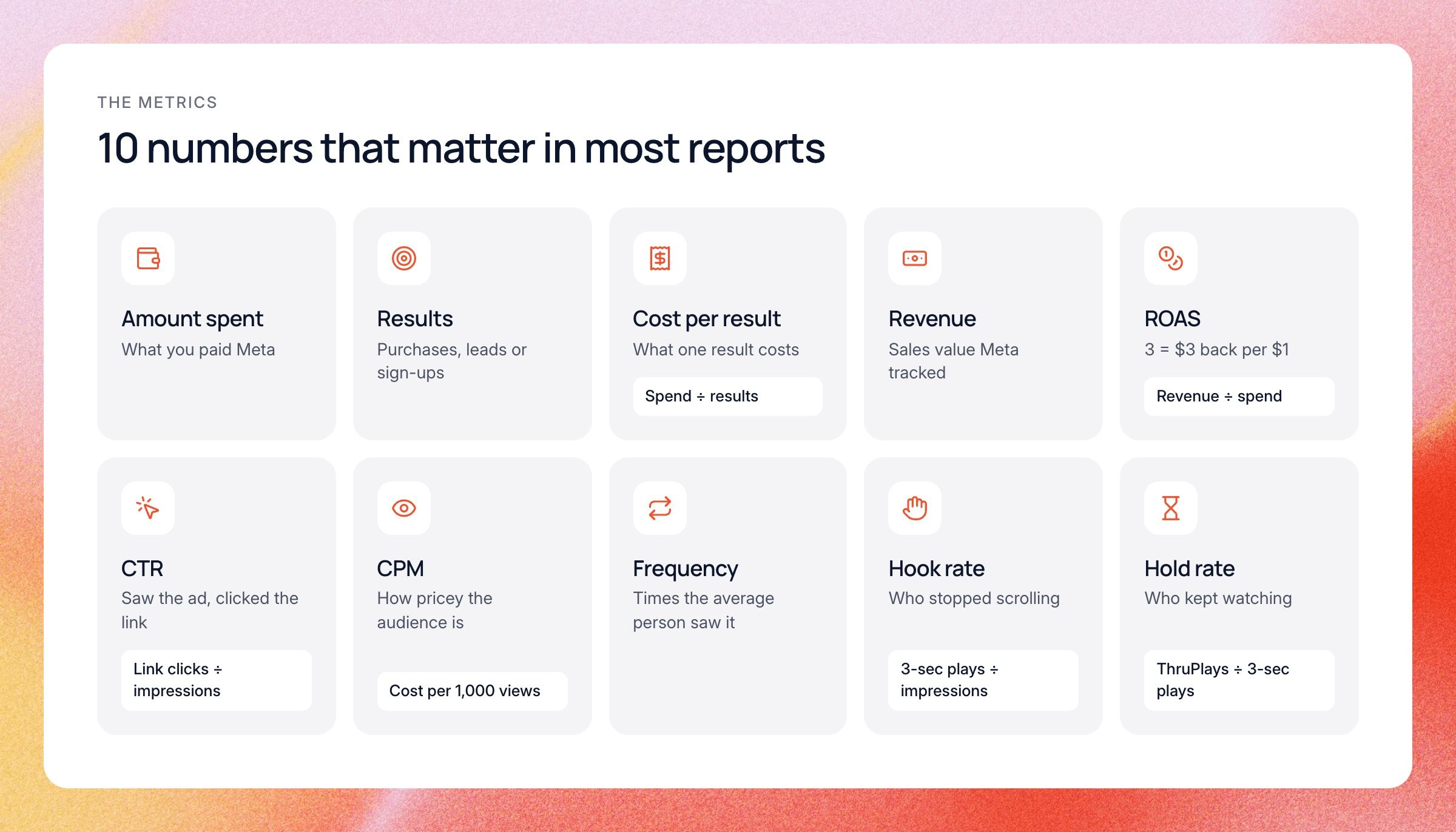
- Amount spent: what you paid Meta in the period.
- Results: the main action you want, like purchases, leads or sign-ups.
- Cost per result (CPA): spend divided by results. What one purchase or lead costs you.
- Revenue (purchase value): the sales value Meta tracked from your ads.
- ROAS: revenue divided by spend. A ROAS of 3 means $3 back for every $1 spent.
- CTR (link click-through rate): the share of people who saw the ad and clicked the link.
- CPM: what it costs to show your ad 1,000 times. It tells you how expensive the audience is.
- Frequency: how many times the average person saw your ad. See ad frequency.
- Hook rate: 3-second video plays divided by impressions. It shows how many people stopped scrolling.
- Hold rate: ThruPlays divided by 3-second video plays. It shows how many people kept watching after the hook.
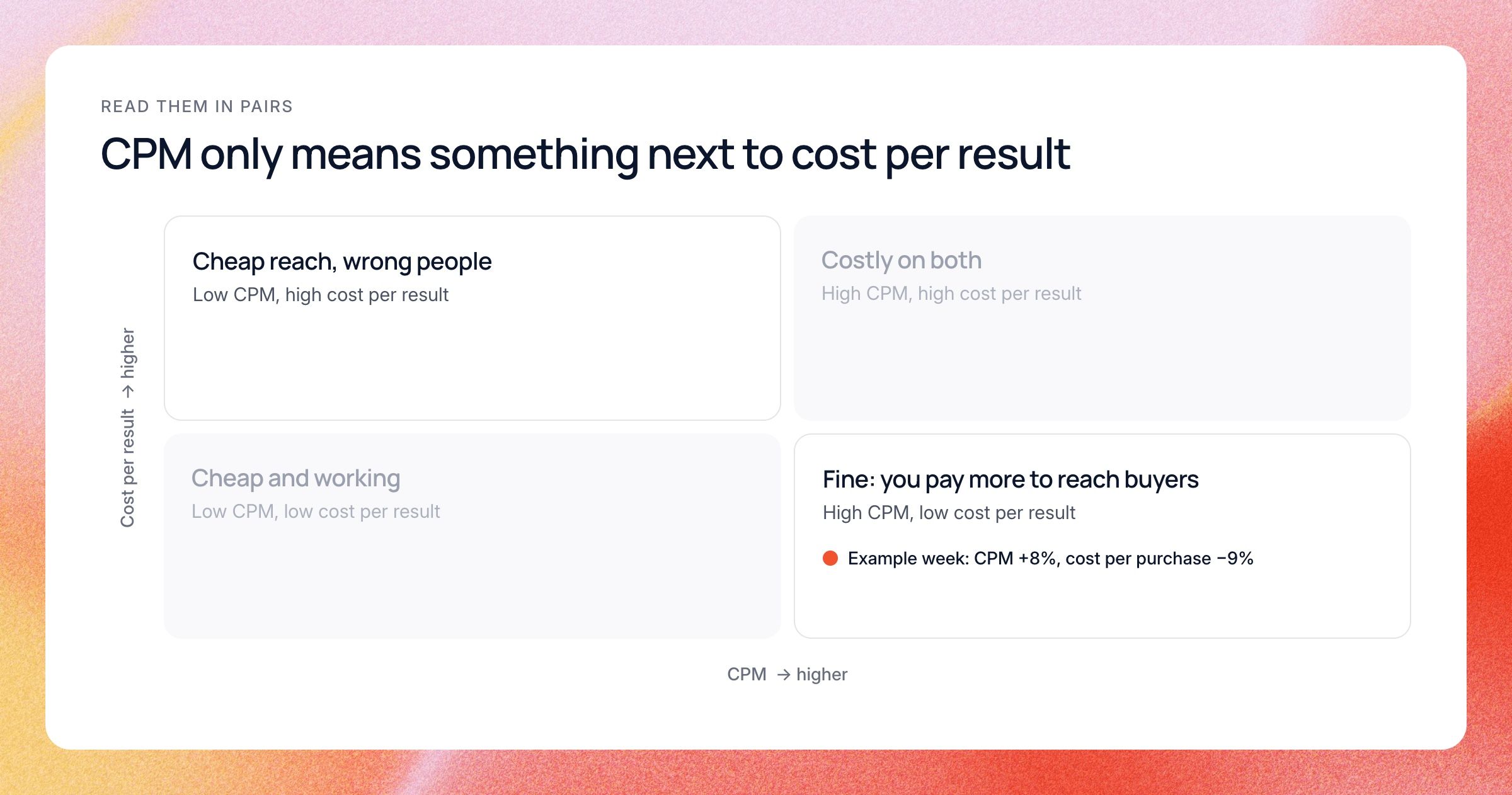
Some of these numbers only make sense next to each other. A high CPM with a low cost per result is fine, because you're paying more to reach people who buy. A low CPM with a high cost per result usually means cheap reach to the wrong people.
Hook rate and hold rate show what happens in the first seconds of a video ad, which CTR and cost per result can't tell you. Meta doesn't offer them as standard columns, so you add them as custom metrics in Ads Manager or work them out in your sheet. As a starting point, a hook rate under 20% often means the opening isn't stopping people. Treat that as a rough guide, not a benchmark, and compare each ad with your own account's average before you judge it.
Note that revenue and ROAS here are what Meta tracked. They often won't match your store or CRM, because each tool counts sales in its own way. Say which source you used in the report, so nobody gets surprised later.
Facebook ads report example
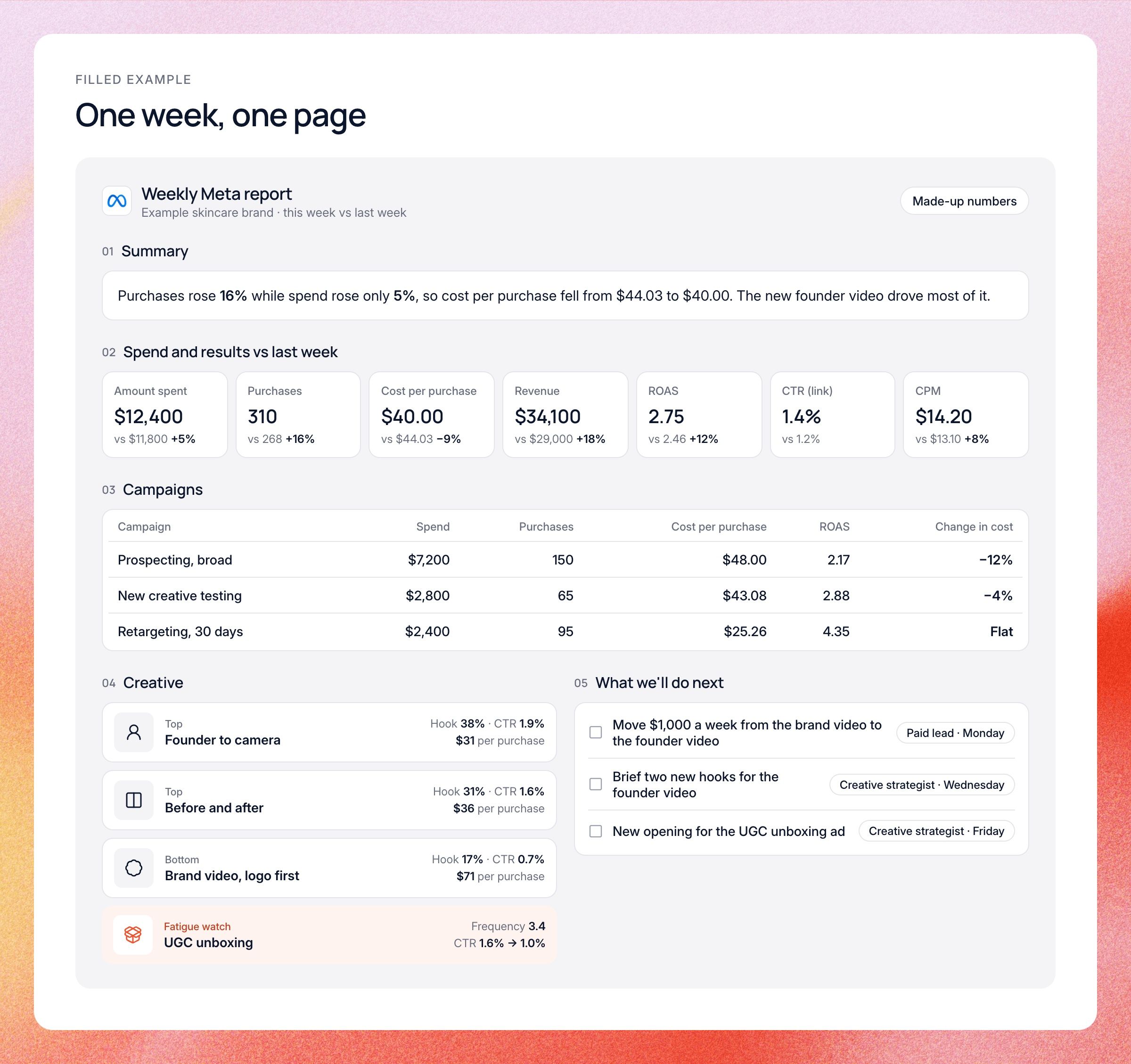
Here is a short filled example so you can see how the template reads. This is an example with made-up numbers. It's for a fictional skincare brand, comparing one week with the week before.
Example: summary
Purchases rose 16% (268 to 310) while spend rose only 5%, so cost per purchase fell from $44.03 to $40.00. Most of the gain came from the new founder video in prospecting, which has the best hook rate in the account. Retargeting held steady. Next week we'll move budget from the polished brand video to the founder video and brief two new versions of its hook.
Example: spend and results vs last week
These are the headline numbers for the example account.
- Amount spent: $12,400 vs $11,800 (+5%)
- Purchases: 310 vs 268 (+16%)
- Cost per purchase: $40.00 vs $44.03 (−9%)
- Revenue: $34,100 vs $29,000 (+18%)
- ROAS: 2.75 vs 2.46 (+12%)
- CTR (link): 1.4% vs 1.2%
- CPM: $14.20 vs $13.10 (+8%)
Notice how CPM went up but cost per purchase went down. The audience got slightly more expensive to reach, but more of the people who saw the ads clicked and bought. That's a creative win, and the summary says so.
Example: campaign table
Each line is one campaign, sorted by spend.
- Prospecting, broad: $7,200 spend, 150 purchases, $48.00 cost per purchase, ROAS 2.17, cost per purchase down 12%
- New creative testing: $2,800 spend, 65 purchases, $43.08 cost per purchase, ROAS 2.88, cost per purchase down 4%
- Retargeting, 30 days: $2,400 spend, 95 purchases, $25.26 cost per purchase, ROAS 4.35, flat
Retargeting looks like the star on ROAS, but it only reaches people who already know the brand. Prospecting is where new customers come from, so its 12% drop in cost per purchase is the bigger story this week.
Example: creative
These are the ads worth talking about in the example account.
- Top: "Founder talks to camera, I stopped using 5 products." Hook rate 38%, hold rate 14%, CTR 1.9%, $31 per purchase. A real person and a clear promise in the first second.
- Top: "Customer before and after, 15 seconds." Hook rate 31%, CTR 1.6%, $36 per purchase.
- Bottom: "Polished brand video, logo first." Hook rate 17%, CTR 0.7%, $71 per purchase. The first two seconds are a logo, so most people scroll past.
- Fatigue watch: "UGC unboxing." Frequency 3.4, CTR down from 1.6% to 1.0% over two weeks. Still profitable, but slipping.
The top two ads share a pattern: a real person on screen and a clear point in the first second. The bottom ad opens with a logo, which gives people no reason to stop. That pattern is what the next briefs should copy, and it's worth one line in the summary.
Example: what we'll do next
The actions come straight from the numbers above.
- Move $1,000 a week from the brand video to the founder video. Owner: paid lead, by Monday.
- Brief two new hooks for the founder video, same body. Owner: creative strategist, by Wednesday.
- Make a fresh version of the UGC unboxing ad with a new opening. Owner: creative strategist, by Friday.
Each action points back to a number in the report, so nobody has to guess why it's there. Each one also has a name and a day next to it. Next week's report starts by checking whether these three things happened and what they changed.
How to build a Facebook ads report in Ads Manager
You can build a solid weekly report inside Meta for free. It takes some setup the first time, then a few minutes each week. Menu names move around, but the steps stay roughly the same.
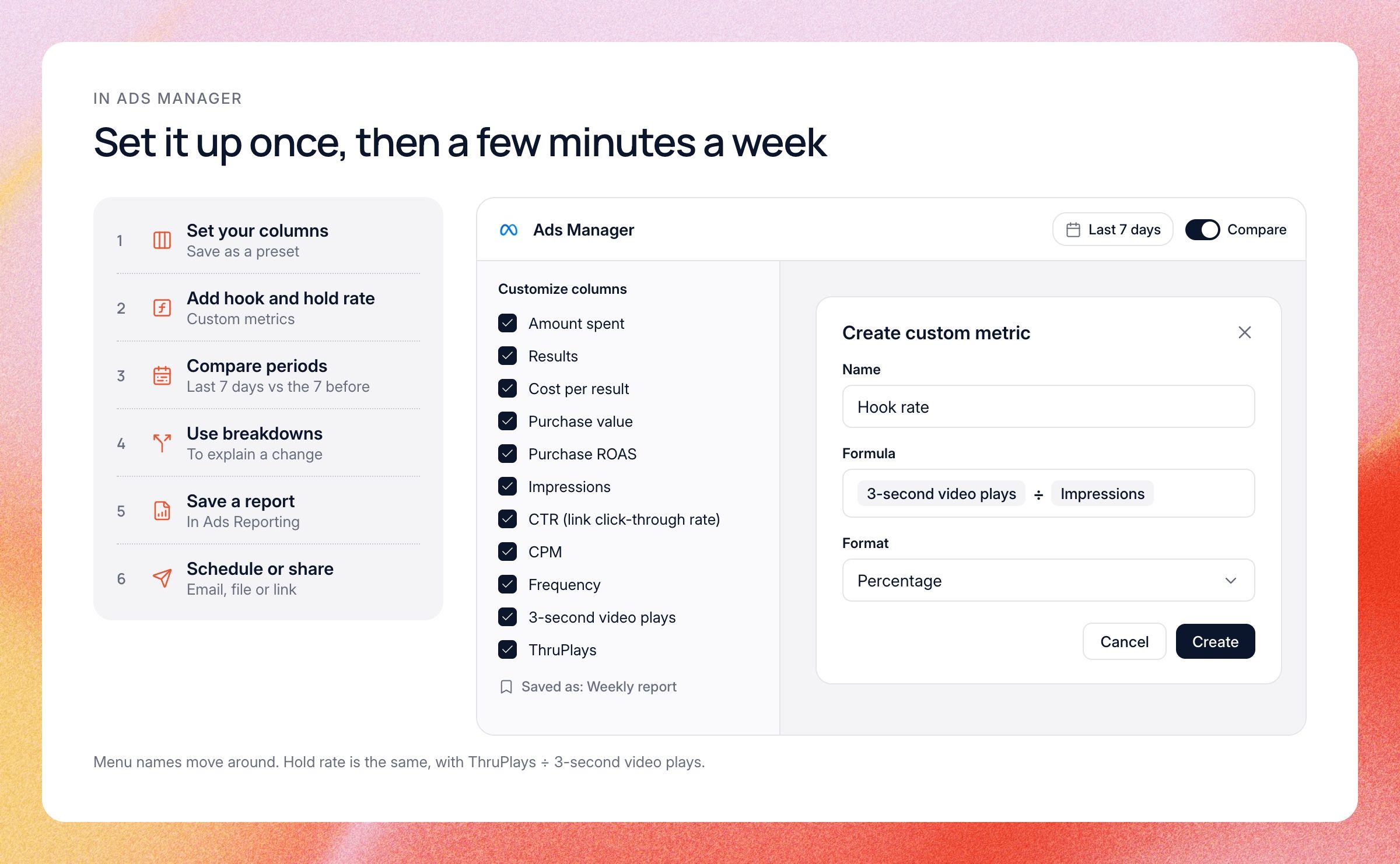
- Set your columns. In Ads Manager, open Columns and choose Customize columns. Add amount spent, results, cost per result, purchase value, purchase ROAS, impressions, CTR (link click-through rate), CPM, frequency, 3-second video plays and ThruPlays. Save it as a preset, like "Weekly report".
- Add hook rate and hold rate. In the same Customize columns window, select Create custom metric. Build hook rate as 3-second video plays divided by impressions, and hold rate as ThruPlays divided by 3-second video plays, and set the format to percentage. You can share a custom metric with everyone on the ad account, but once it's shared you can't edit or delete the formula.
- Turn on comparison. Open the date filter at the top of the table, pick last 7 days, and switch on the Compare toggle to pick the 7 days before. Click Update. The table can then show both periods, the change and the percent change for each metric.
- Use breakdowns. Click Breakdown and choose By delivery, By action or By time. Placement, age and gender sit under By delivery, and day sits under By time. Use them to explain a change in the numbers, and leave them out of the report unless they tell part of the story.
- Save a report. In Ads Manager, open the Reports menu and choose Create custom report, which takes you to Ads Reporting. You can also start from one of Meta's report templates. In the Customize pivot table panel, add campaign name and ad name as breakdowns and your metrics, then save the report so you can reopen it any time.
- Schedule or share it. From Ads Reporting you can schedule the report to be emailed to you and your team each week. You can also export it as an .xlsx or .csv file, or share it as a link. Links can go to people inside or outside your business, and you can set an expiry date on their access.
This setup covers the numbers, but you still write the summary and the next steps yourself each week. Ads Manager only shows a small thumbnail next to each ad, so judging the creative means opening the ads one by one. That's why the creative section often ends up rebuilt in a sheet or a deck.
How to build a Facebook ads report template in Google Sheets or Excel
A sheet gives you full control over the layout. It's also the best way to share a report with people who don't have access to your ad account. The same steps work in Google Sheets and Excel.
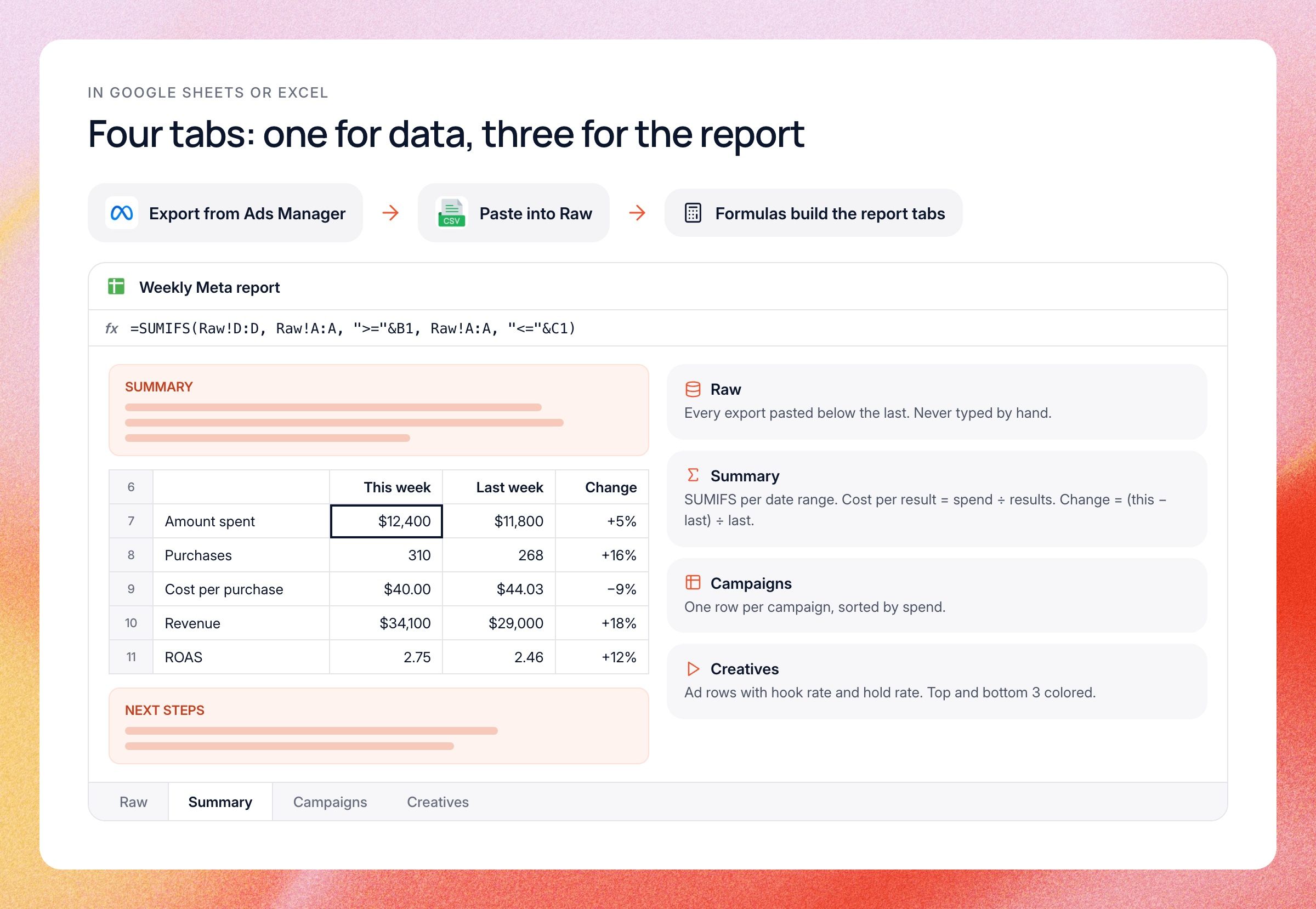
- Make four tabs. Call them Raw, Summary, Campaigns and Creatives. Raw holds the data, and the other three tabs are the report.
- Export from Ads Manager. Use your saved column preset, set the date range, and export as CSV or Excel. Include campaign name, ad name and a day column, so you can filter by dates later.
- Paste into Raw. Paste each new export into the Raw tab, under the old data. Never type into this tab by hand.
- Add formulas. On the Summary tab, use SUMIFS to add up spend, results and revenue for each date range. For example, =SUMIFS(Raw!D:D, Raw!A:A, ">="&B1, Raw!A:A, "<="&C1) adds spend between two dates. Then work out cost per result as spend divided by results, ROAS as revenue divided by spend, and change as (this period − last period) ÷ last period.
- Build the creative tab. Pull ad-level rows and add hook rate (3-second plays ÷ impressions) and hold rate (ThruPlays ÷ 3-second plays). Sort by results, and use conditional formatting to color the top and bottom three.
- Leave space for words. Put the summary box at the top of the Summary tab and the next steps box at the bottom. These are the parts people read.
The weak spot is upkeep. Every week someone exports, pastes, checks the formulas and fixes whatever broke. Connector add-ons can pull Meta data into a sheet on a schedule, but most are paid, and you still write the summary by hand. If you run reports for several clients, that work multiplies fast.
How this works in Lemonado
Lemonado is an AI co-worker for marketing. It connects to your Meta ad account (and Google, TikTok, LinkedIn and the rest), so it works from your real numbers. For reporting, that changes the job from building a report every week to describing it once.
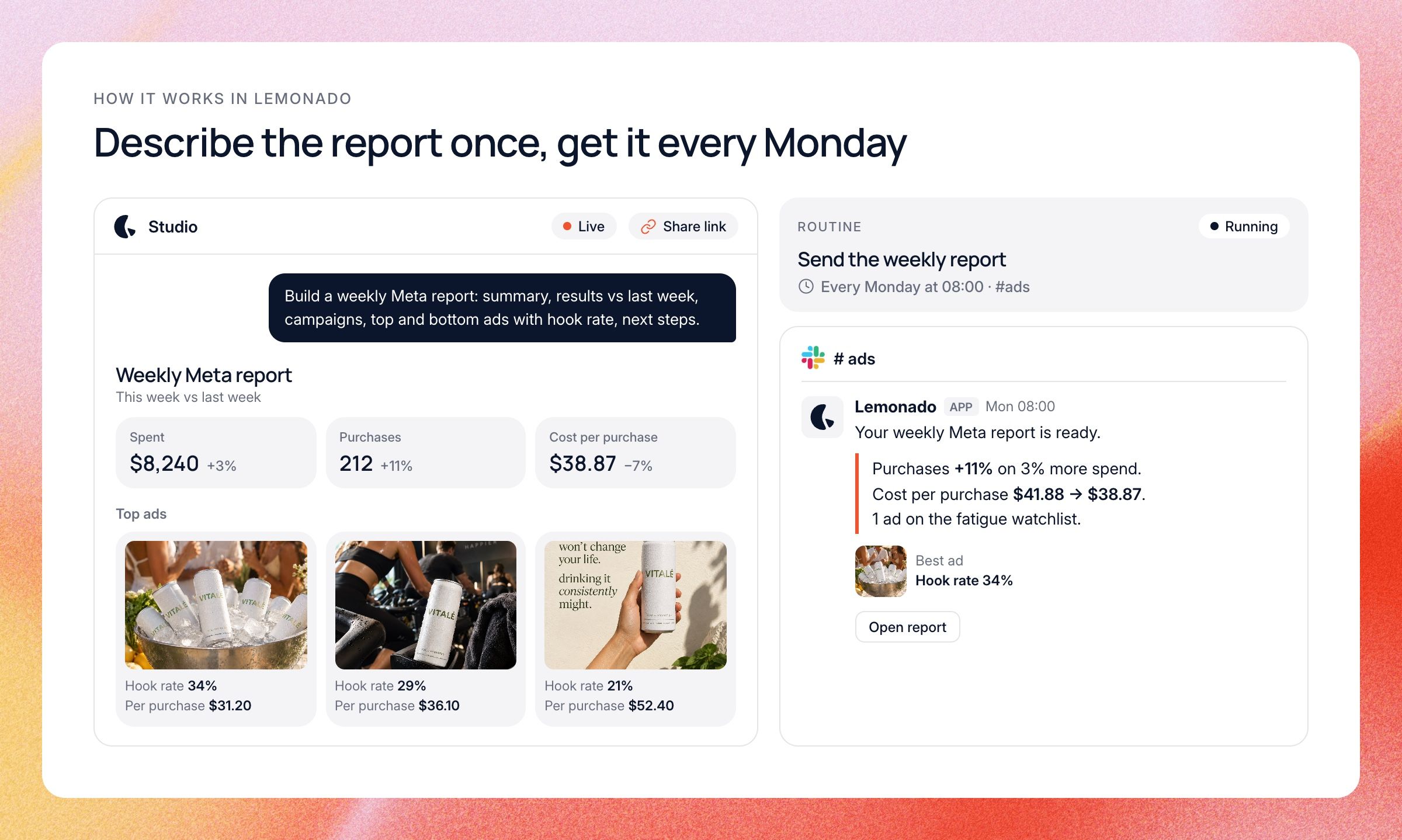
In Studio, you describe the report you want in plain words. For example: "Build a weekly Meta report with a summary, spend and results vs last week, a campaign table, top and bottom ads with hook rate, and next steps." Lemonado builds it from your live Meta data. The report stays live, so the numbers update on their own, and you share it by link with your boss or client.
The creative section is where it saves the most time. Creatives shows hook score, hook rate, hold rate, completion and fatigue scores for every ad, with the ad itself next to its numbers. You can keep lists like top performers and a fatigue watchlist, and ask Lemonado in chat why one ad beats another. One thing to know: Creatives measures hook rate as the share of impressions that reach 25% of the video, so it won't match a 3-second hook rate you build in Ads Manager. Pick one definition and stick to it in every report.
Then hand the routine work off. A Routine can send the report every Monday morning to Slack or email, with a short written summary of what changed. Agencies can set up one report per client and let a Routine send each one, so nobody rebuilds them by hand. See how that works for marketing agencies.
Do this with AI
If you want to try an AI-written report before setting anything up, you can use a general AI chat with an export. Export last week and the week before from Ads Manager at ad level, then paste both into the prompt below. It works in ChatGPT, Claude or inside Lemonado.
The quality of the answer depends on the export. Include ad name, campaign name, spend, results, revenue, impressions, link clicks, frequency, 3-second video plays and ThruPlays. Check the numbers it gives you against Ads Manager the first few times.
You are a senior performance marketer writing a weekly Facebook ads report for my boss. Below are two Meta Ads Manager exports at ad level: last week and the week before. Columns include campaign name, ad name, amount spent, results, purchase value, impressions, link clicks, frequency, 3-second video plays and ThruPlays. Write the report in this order: 1. Summary: 3 to 5 sentences. Main result, why it happened, and the main change to make. Use numbers. 2. Spend and results vs last week: amount spent, results, cost per result, revenue, ROAS, link CTR, CPM and frequency, with the % change for each. 3. Campaign table: one row per campaign, sorted by spend, with spend, results, cost per result, ROAS, CTR and change in cost per result. 4. Creative: top 3 and bottom 3 ads with meaningful spend. Show hook rate (3-second plays / impressions), hold rate (ThruPlays / 3-second plays), CTR and cost per result. Give one line on why each works or doesn't. Then list any ad where frequency rose and CTR fell by 20% or more. 5. What we'll do next: 3 to 5 specific actions tied to the numbers above. Keep it plain and short. Don't make up numbers that aren't in the data. Last week: [paste export] Week before: [paste export]
FAQs
These are common questions about Facebook ads reports, with short answers. If yours isn't here, start from the template above. It fits most accounts with small changes.
What should a Facebook ads report include?
A Facebook ads report should include a short summary, the headline numbers compared with last period, a campaign table, a creative section, and next steps. The headline numbers are usually spend, results, cost per result, revenue, ROAS, CTR, CPM and frequency. The creative section should show your best and worst ads with hook rate. Next steps turn the report into decisions.
How often should I send a Facebook ads report?
Weekly works for most teams running steady spend, because it catches problems before they get expensive. A common setup for agencies is a short weekly update plus a fuller monthly report for clients. Daily reports tend to cause overreactions, since Meta numbers swing a lot day to day. If you spend a lot, set up alerts for big changes instead of reading a daily report.
Is there a free Facebook ads report template?
Yes. The template in this post is free to copy into a doc, Google Sheets or Excel. Meta also has free report templates inside Ads Reporting that you can save and schedule. What free templates don't do is write the summary or update themselves, so expect some manual work each week.
How do I make a Facebook ads report in Google Sheets?
Export your data from Ads Manager as a CSV, paste it into a raw data tab, and build summary tabs with SUMIFS formulas. Add columns for cost per result, ROAS, hook rate and the percent change vs last period. Keep a box at the top for the written summary. The steps in the Google Sheets section above walk through it.
What's the difference between a Facebook ads report and a Meta ads report?
There's no difference. Meta is the company that owns Facebook and Instagram, and Ads Manager covers ads on both. A Meta ads report usually includes Instagram results too, which is why many teams now call it that. The template and metrics are the same.
Why don't my Facebook ads numbers match my store or CRM?
Meta counts a sale if someone saw or clicked an ad within its attribution window, while your store counts every sale however it happened. Privacy changes have also made tracking less exact. Both numbers can be right in their own way. Pick one source for each number in your report and say which one you used.
Get started
You now have a full Facebook ads report template, an example and two ways to build it by hand. If you'd rather describe the report once and have it built from your live Meta data, try Lemonado. Get $150 in credits, no card needed, at data.lemonado.io.