

Ready to bring your LinkedIn Ads data into Lemonado? The connection takes just a few minutes. Lemonado syncs your campaigns, campaign groups, creatives, and performance metrics into an AI-ready workspace where tools like ChatGPT or Claude can instantly analyze performance, surface insights, and automate reporting with real-time business context.
Instead of spending hours each week exporting data from Campaign Manager, managing spreadsheets, or building custom reports, Lemonado gives you direct, conversational access to your LinkedIn Ads data with simple prompts like:
In the steps below, we'll walk you through connecting LinkedIn Ads to Lemonado, verifying your data sync, and using AI tools like ChatGPT or Claude to query your B2B advertising data.
If you’re new to Lemonado, click here to get started for free.
Step 1: Select LinkedIn Ads
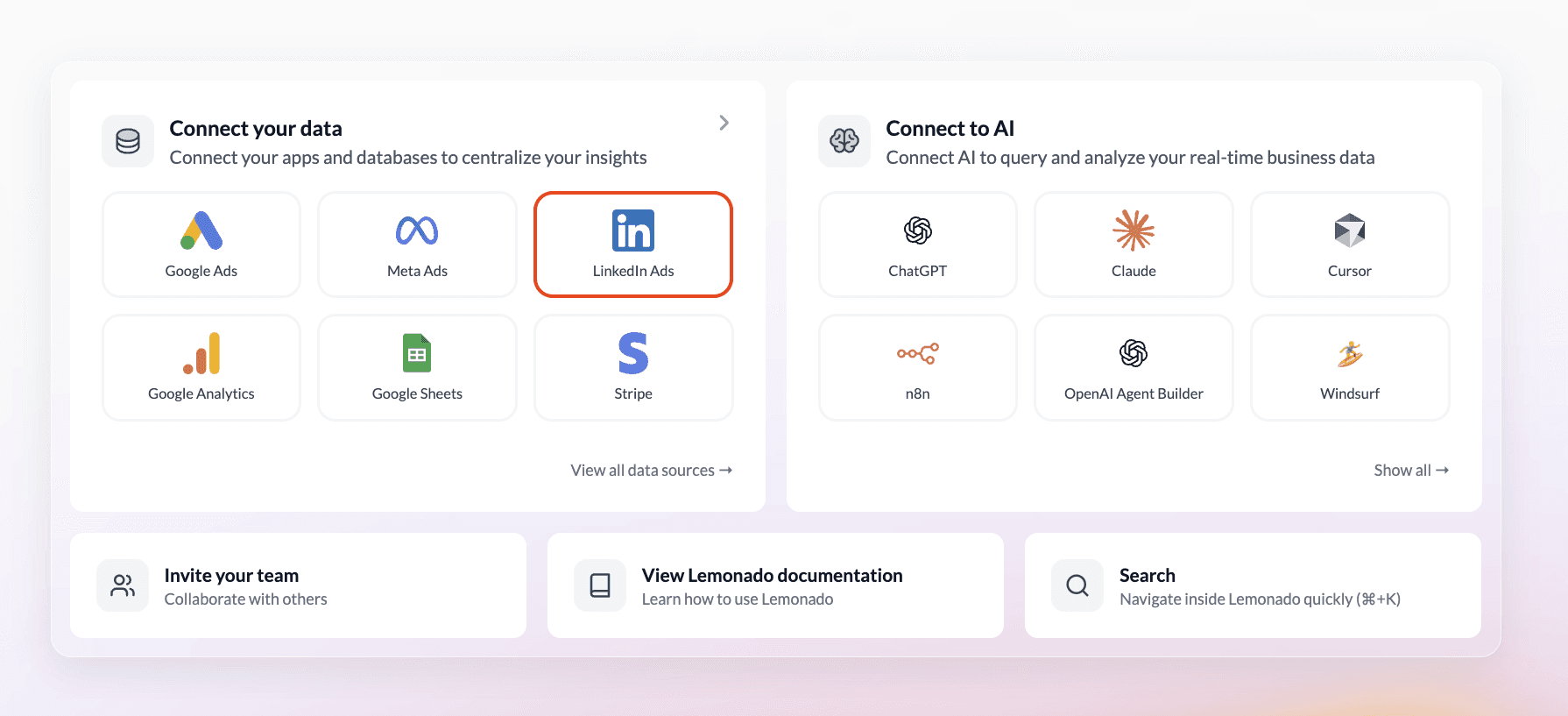
In your Lemonado workspace, go to Connect your data on the Home screen and select LinkedIn Ads. This opens a setup window where you can choose the account you want to connect and grant permission.
Click Connect with LinkedIn Ads to begin.
Step 2: Verify your account(s)
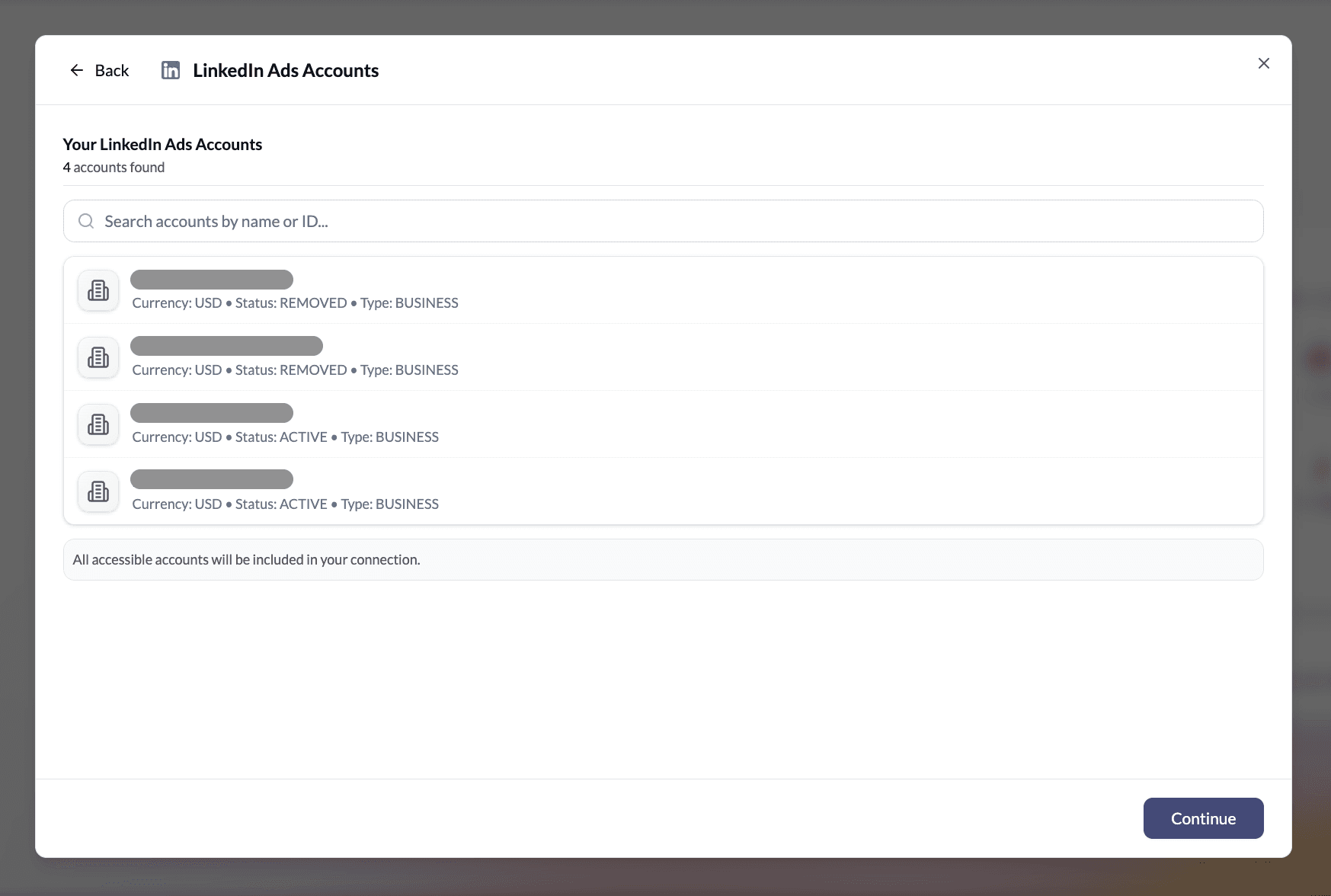
After authentication, you’ll see a list of your accessible LinkedIn Ads accounts. Review the accounts that will be included in your connection. Once you’ve confirmed they’re correct, click Continue to finish syncing your data with Lemonado.
Step 3: Choose your AI
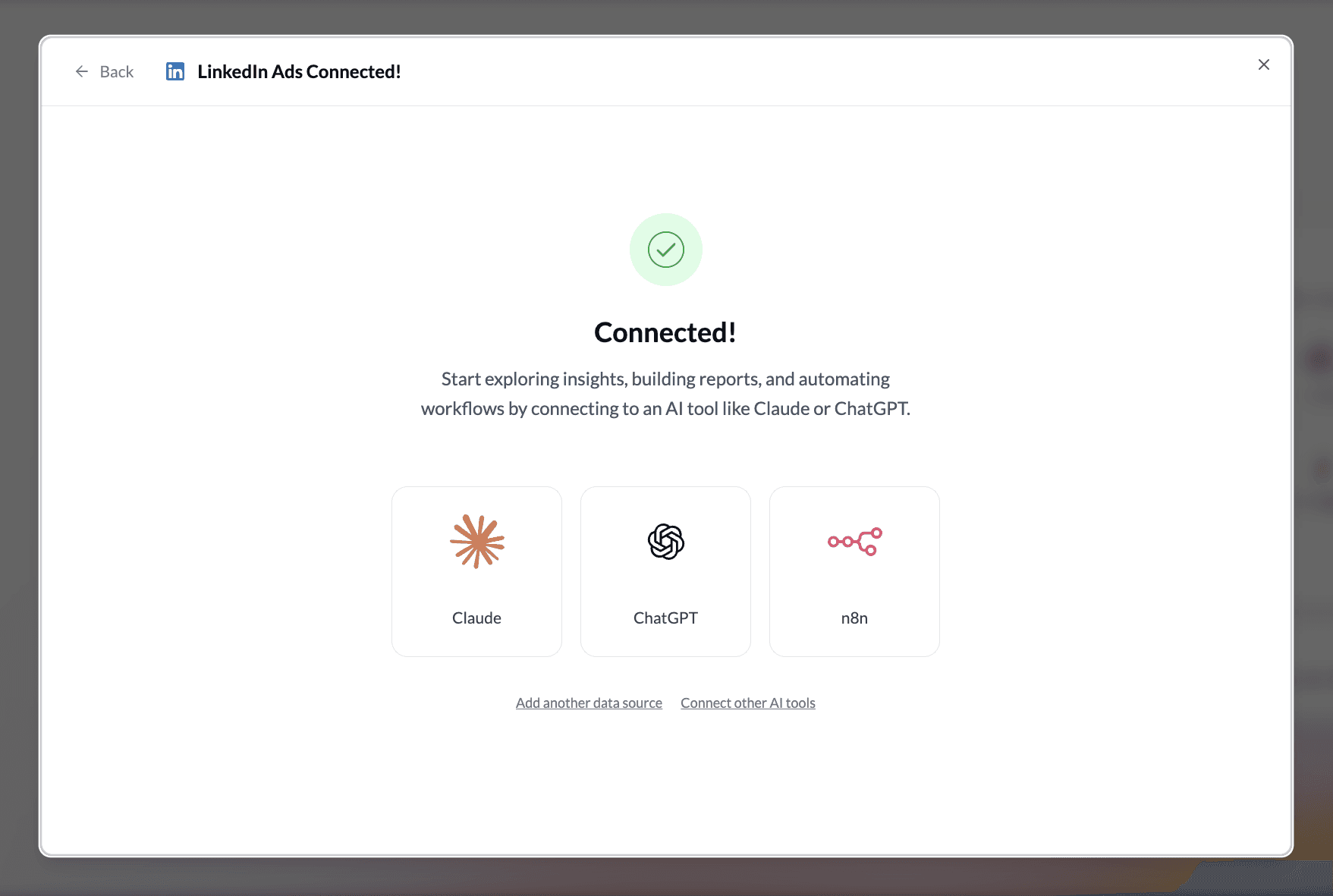
After your LinkedIn Ads account(s) is synced, connect it to your preferred AI assistant via Lemonado MCP (Model Context Protocol).
Available connections include Claude, ChatGPT, Gemini, n8n, Cursor, and more. Click the AI tool icon of your choice and follow the guided steps.
Step 4: Create an AI Connector
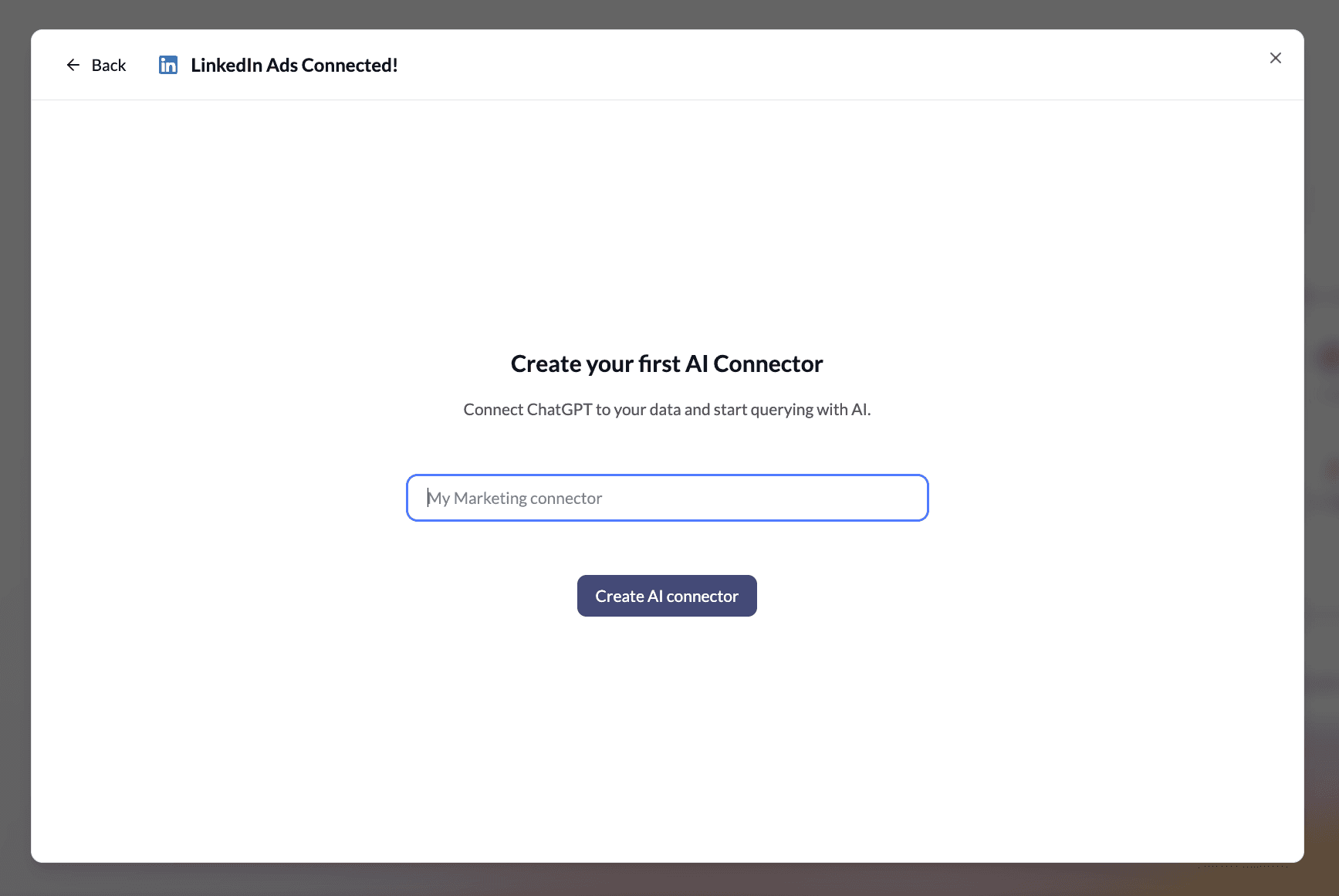
Name your connector (for example, “LinkedIn Ads Connector”) and click Create AI Connector.
This gives your AI assistant secure, read-only access to your LinkedIn Ads data. You can add more sources later, like Google Sheets, Google Analytics, or Stripe, for deeper, cross-tool insights.
Step 5: Connect your AI
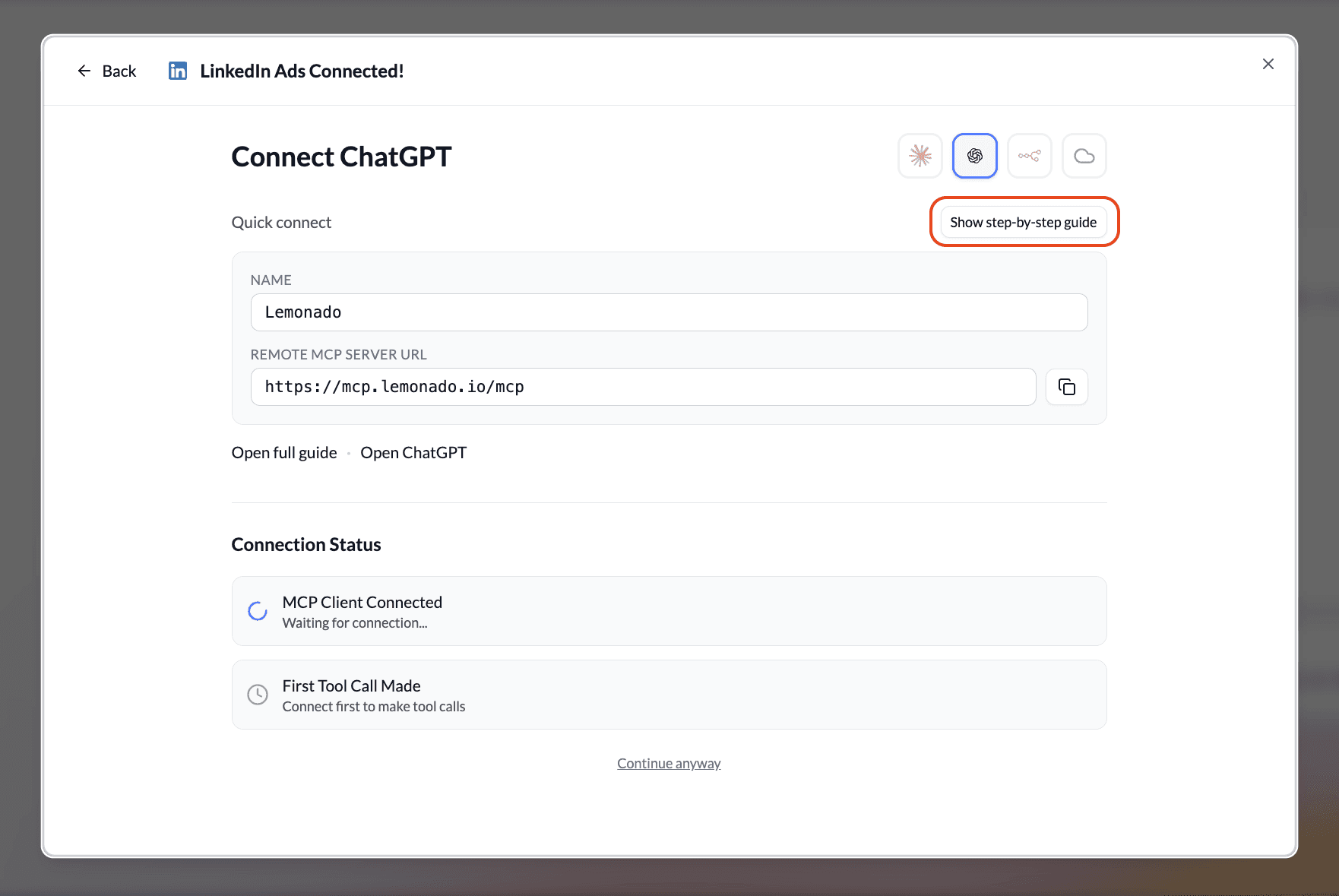
Next, connect Lemonado MCP to your AI tool(s). Lemonado MCP operates as a remote server, simplifying the integration process.
Follow the step-by-step guide in this setup window, or select one of the links below for detailed instructions on connecting Lemonado MCP to your chosen AI assistant or workflow builder.
🔗 How to Connect Lemonado MCP to Claude
🔗 How to Connect Lemonado MCP to ChatGPT
Step 6: Manage data access
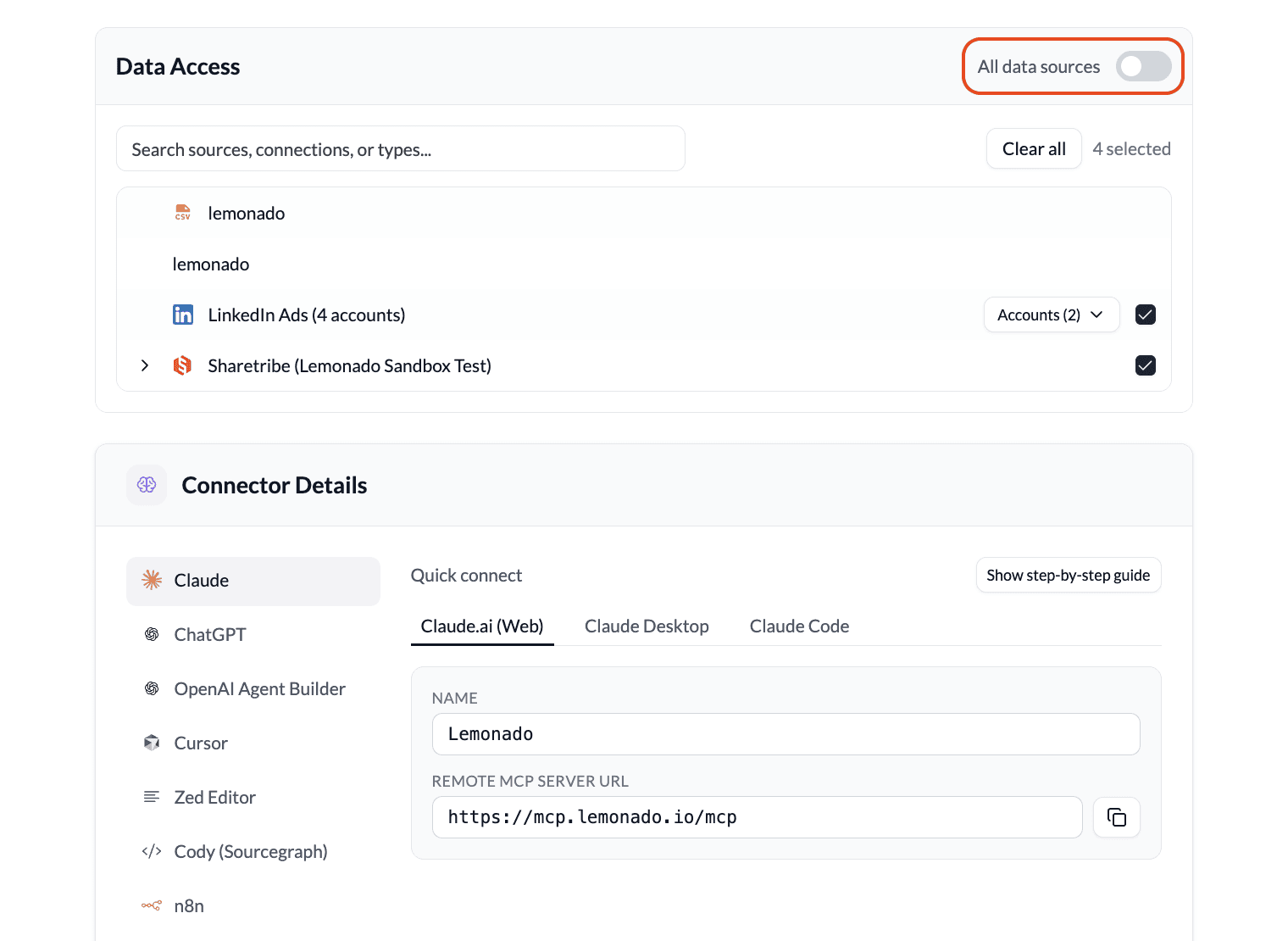
By default, your new connector has access to all data sources in your Lemonado workspace. To keep all sources connected, you can skip this step.
To customize data access, navigate to the left sidebar in your workspace and locate your new connector under AI CONNECTORS. Toggle All data sources off and select specific sources and accounts. This is useful for:
Reducing context consumption
Limiting data access for individual users and teams you share this connector with
You can modify these settings at any time.
Now that you've successfully connected your LinkedIn Ads account(s) to Lemonado, your AI assistant can analyze your B2B marketing data instantly with prompts like:
More tutorials and configuration options are available in our Resource Center.
Have questions? Contact us anytime at hello@lemonado.io.
Share this post



Stop fighting with data. Start feeding your AI.
Connect your data to AI and free your team from reporting and busywork.