Connect your Lemonado workspace to ChatGPT

ChatGPT supports Model Context Protocol (MCP), which allows you to securely connect external tools and data sources directly into your chat.

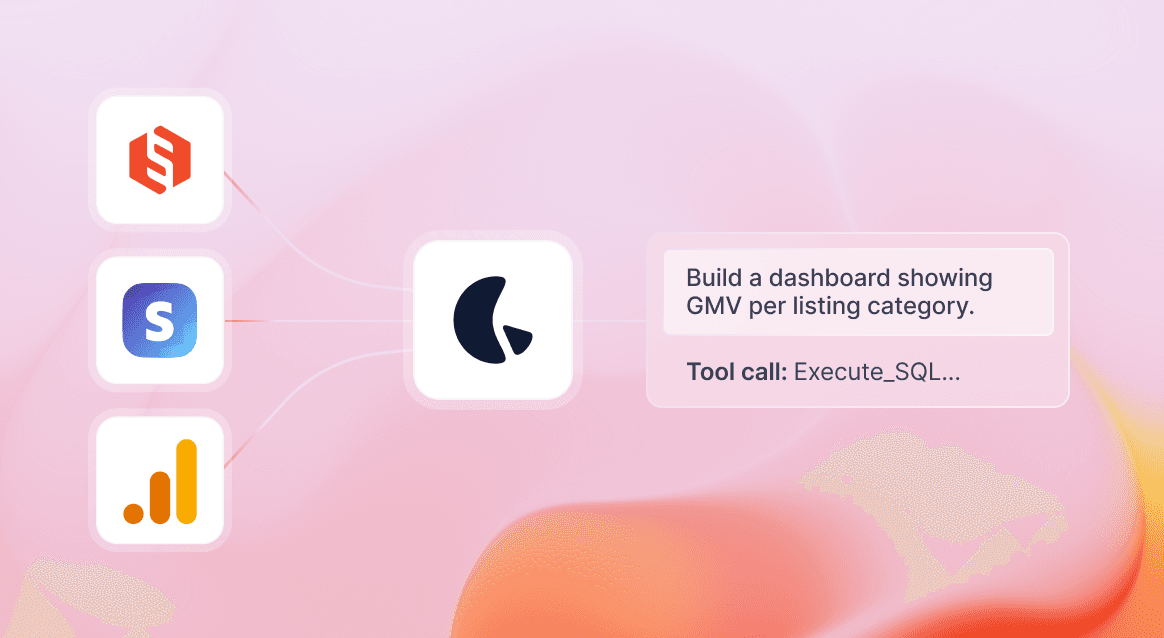
With Lemonado’s MCP server, you can give ChatGPT secure, real-time, read-only access to your marketing and revenue data – including Google Ads, Meta Ads, LinkedIn Ads, TikTok Ads, Stripe, Snowflake, spreadsheets, databases, and internal files.

Unlike many MCP servers that allow models to modify data, Lemonado operates strictly as a read-only data layer. ChatGPT can analyze your data, but it cannot change or delete it. Your underlying systems remain protected at all times.

This guide walks you through:

  1. Enabling custom connectors in ChatGPT

  2. Adding Lemonado as an MCP connector

  3. Activating it inside a chat

  4. Querying your data safely

Before you begin, make sure you:

  • Have a Lemonado account

  • Have at least one data source connected inside Lemonado

Step 1: Enable Custom Connectors

  1. Go to chatgpt.com in your browser

  2. Click your profile icon → Settings

  3. Navigate to Apps → Advanced Settings

  4. Enable Developer Mode

Note: Custom connectors are available on ChatGPT web for Plus, Pro, Business, Enterprise, and Education plans.

Step 2: Add the Lemonado MCP Connector

Once custom connectors are enabled, you can add Lemonado.

  1. In Settings → Apps, click Create app

  2. Enter the following details:

  • Name: Lemonado

  • MCP Server URL: https://mcp.lemonado.io/mcp

  • Authentication: OAuth (recommended)

  1. Click Create

ChatGPT will redirect you to Lemonado to log in and authorize access. After successful authentication, Lemonado will appear as a connected tool in your settings.

Note: You may see a warning about custom MCP servers accessing data. Lemonado is read-only, meaning it can query and analyze your data, but it cannot modify or delete anything in your systems.

Step 3: Activate Lemonado in a Chat

  1. Start a new chat

  2. Click the Tools / Apps / Connectors button near the message box

  3. Select Lemonado from your connected tools

  4. Confirm it is active (you should see it listed as enabled for the chat)

Once activated, ChatGPT can route relevant queries to Lemonado automatically.

Step 4: Start Querying Your Data

Once Lemonado is active in the chat, you can ask natural language questions like:

  • “Compare cost per purchase by channel over the last 30 days.”

  • “Show blended CAC across all ad platforms for Q1.”

  • “Which campaigns have high spend but no conversions in the last 14 days?”

  • “Which campaigns across Google, Meta, and LinkedIn drove the highest ROAS this week?”

ChatGPT will securely query Lemonado’s unified SQL engine, allowing you to combine and analyze data from multiple systems in a single request.

All queries are executed in real time, with no write access to your underlying systems.

Managing or Removing the Connector

To manage your Lemonado connection:

  1. Go to Settings → Apps & Connectors

  2. Select Lemonado

  3. Revoke access or remove the connector

You can also rotate OAuth credentials inside Lemonado at any time.

Best Practices

  • Scope access appropriately – Only connect the data sources your team needs.

  • Monitor usage regularly – Review Lemonado logs to track how queries are being executed.

  • Maintain security hygiene – Rotate OAuth tokens periodically and remove unused connectors.

You’ve now connected ChatGPT to Lemonado via MCP, enabling secure, real-time access to your business data.

If you need help, reach out to hello@lemonado.io

Share this post

Stop fighting with data. Start feeding your AI.

Connect your data to AI and free your team from reporting and busywork.